MyPearls
MyPearls is an iPhone app used to help memorize scripture. It was inspired by the wonderful video hosted by Sonya Shafer cofounder of Simply Charlotte Mason where she explains how to Memorize Scripture in Just Five Minutes Each Day.
Tutorial
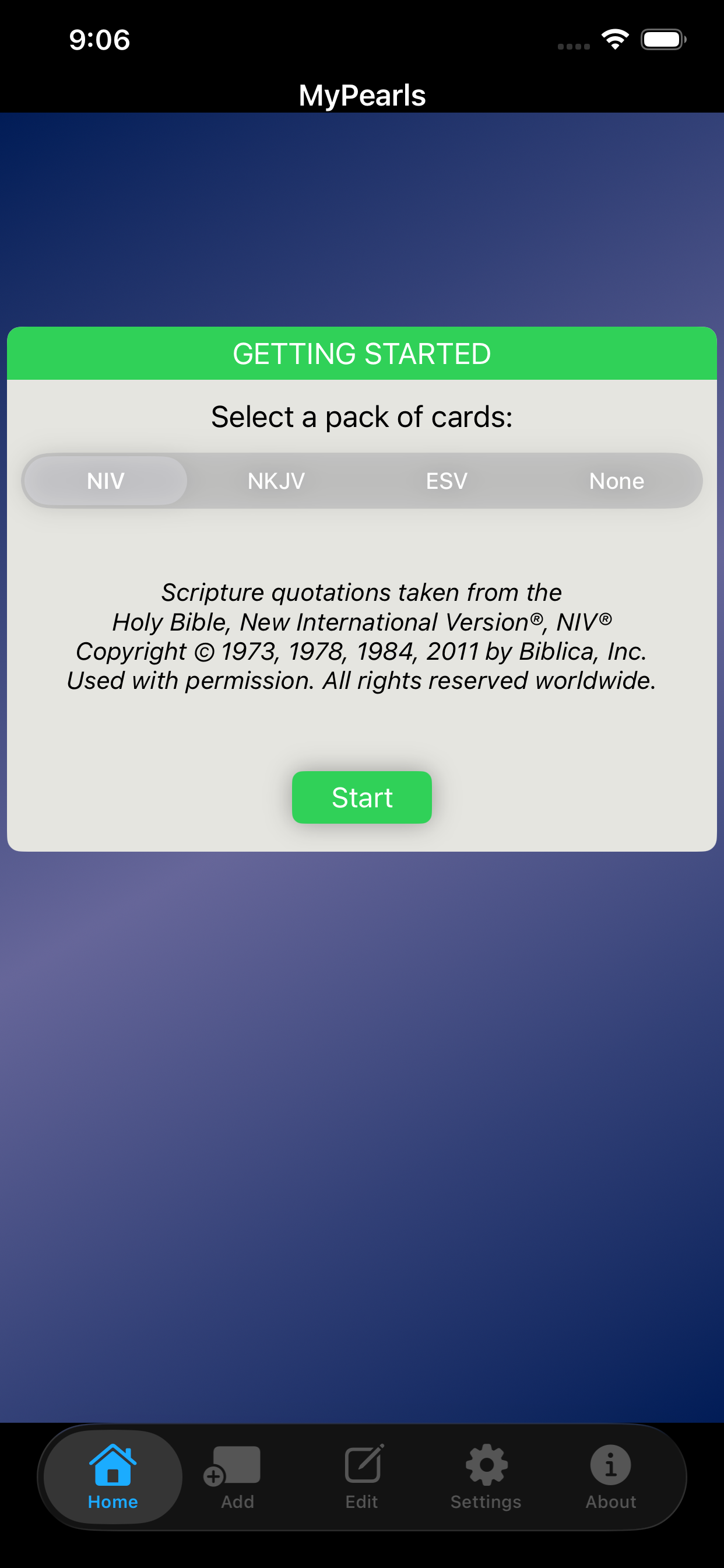
When the app is first started you are presented with a Getting Started screen where you can select a pack of cards from one of several translations such as NIV, NKJV, or ESV. You can also select None and then use the Add screen to manually add your favorite verses.
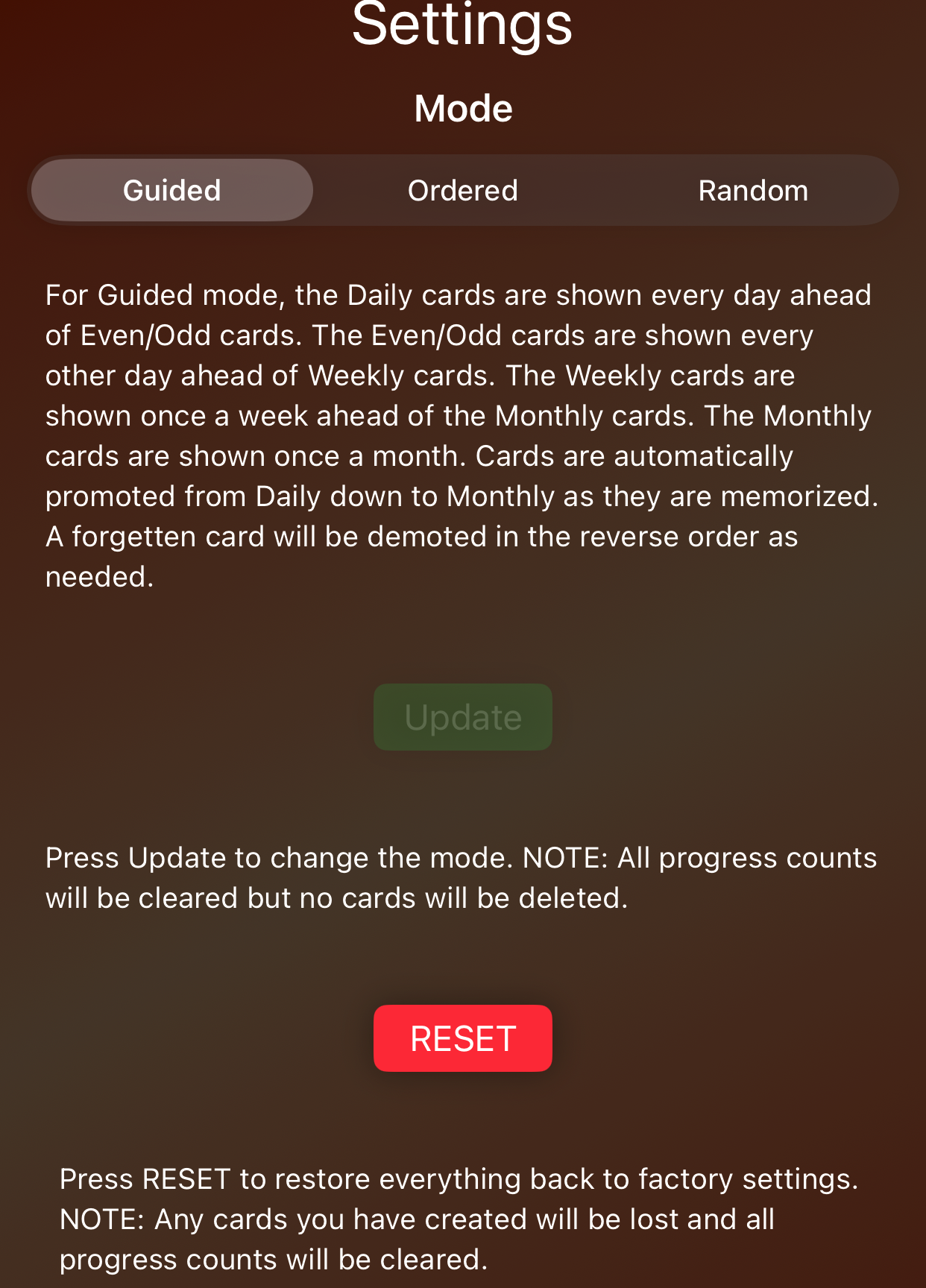
The app normally runs in Guided mode where cards are selected, promoted, and demoted automatically. The Ordered mode simplies the operation by showing the cards in the order they were entered in a round-robin fashion. The Random mode selects a random card each time from the deck for review.
To restore everything to how you received the app when you first downloaded it you press the RESET button. Note that any of the cards you added will be lost.
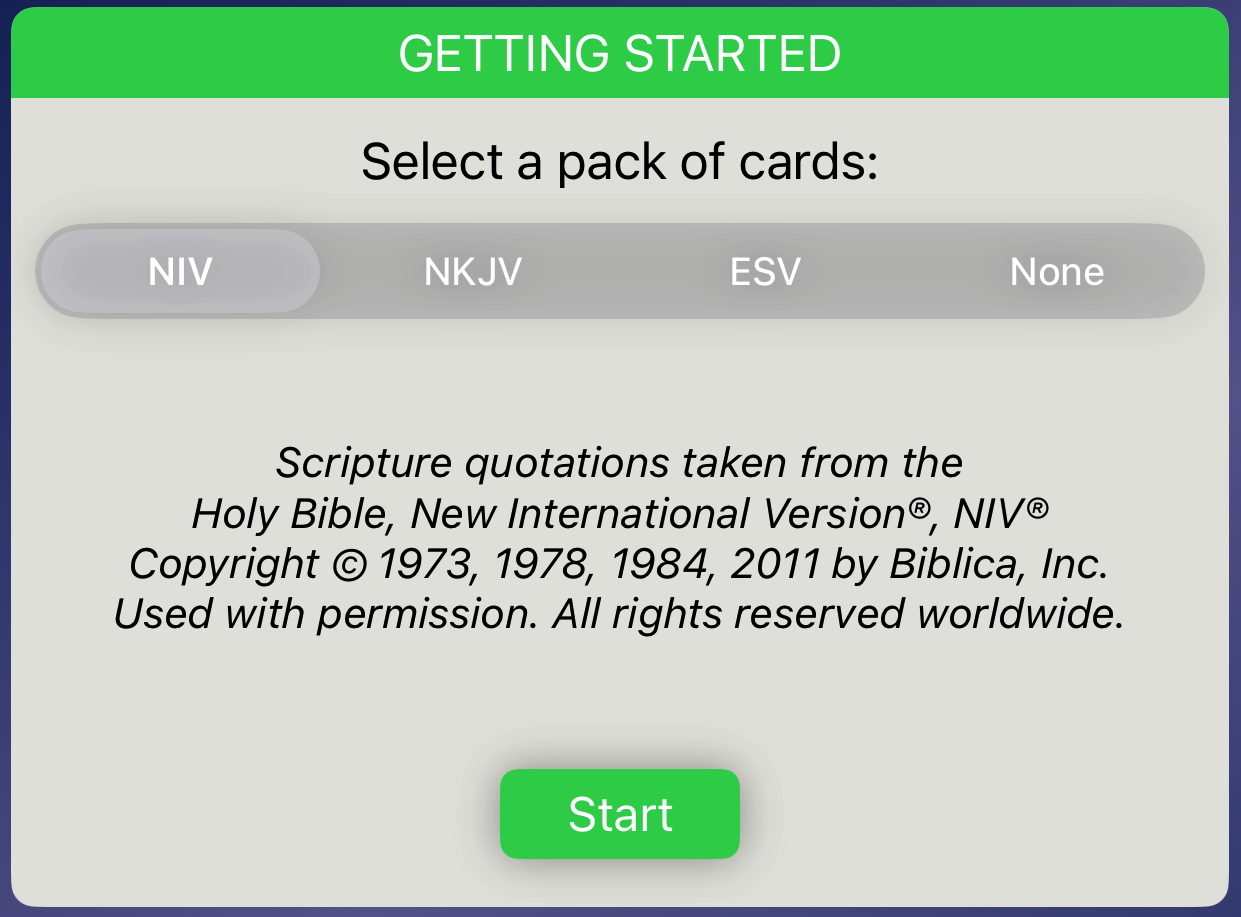
Assuming you loaded one of the translation packs, you will see the Home screen change to this:
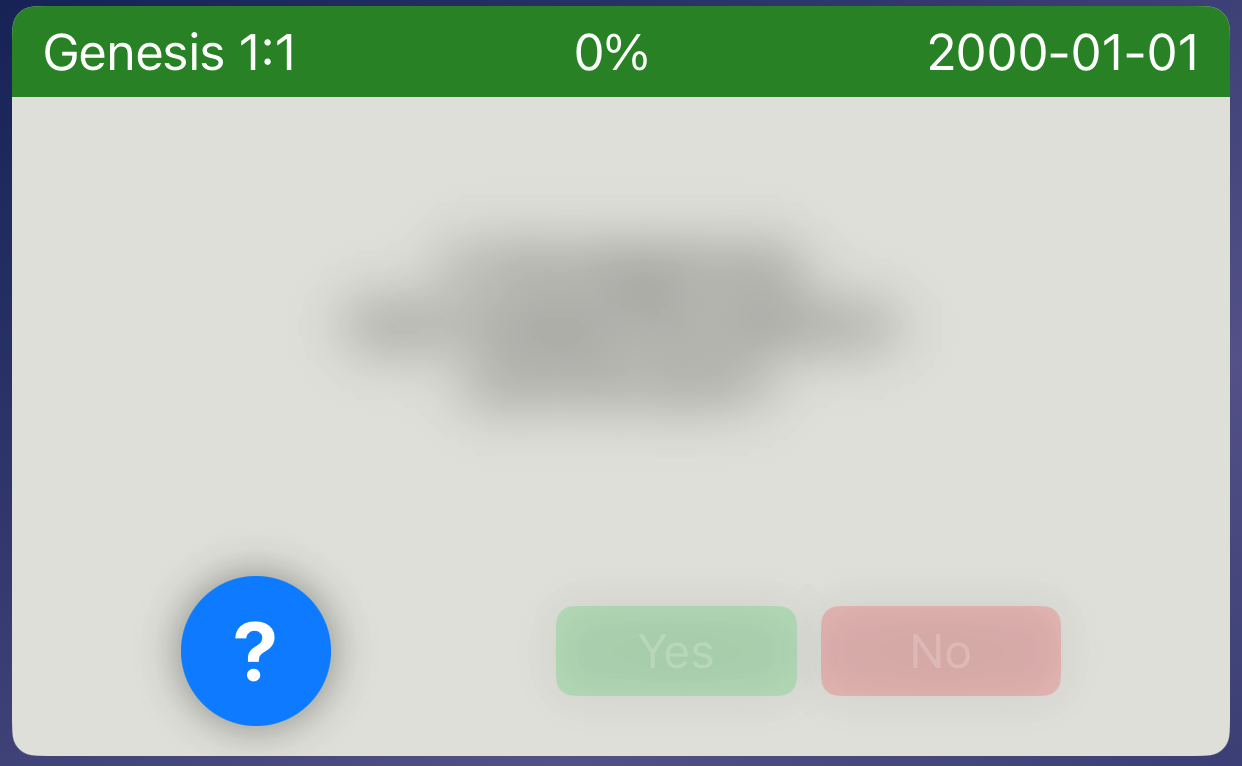
This is the screen that you’ll mostly be working with. It starts by showing you a card with the Reference at the top and the Verse blurred out. Here is where you try to recall was the verse text is for the given reference. When you think you’ve got it or you just can’t remember it, you press the blue question mark called the Reveal button. The screen will change to:
If you remembered the verse go ahead and press Yes otherwise press No. The app will track how many times you’ve pressed Yes or No. It shows a percentage at the top of the card in the center which represents the number of successes versus the number of attempts for the card. Whenever the percentage exceeds 80% the card is ready for promotion, explained later.
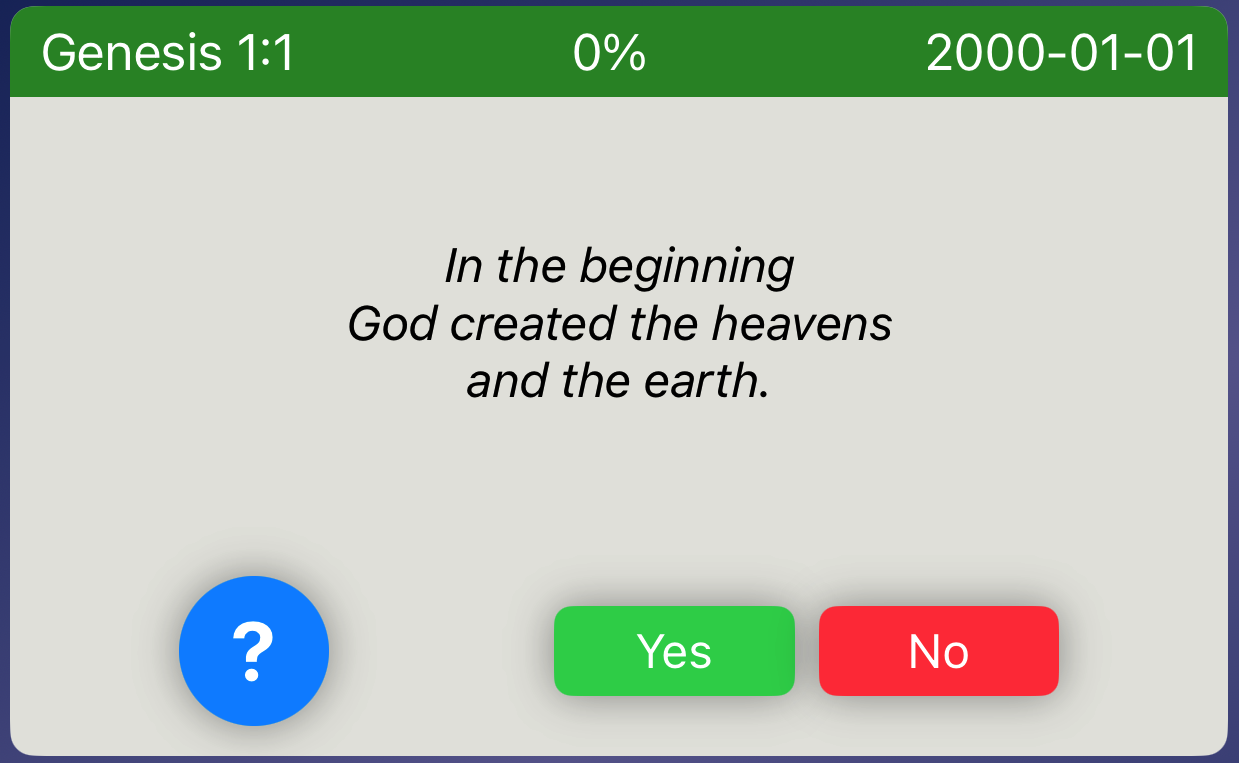
The app starts with 3 cards to be reviewed Daily. After completing the three cards you’ll be notified that you are done for the day. At that point you can close the app. You can also continue to review the cards as many times as you like where you will be notified again whenever you reach the end of today’s cards.
Promotion: Eventually when a Daily card become memorized it will be promoted to an Even/Odd card. Even/Odd cards will be selected for review every other day, assuming they need less attention. An Even/Odd card get promoted to a Weekly card whenever a Daily card is promoted into its spot. Weekly cards appear in the selection list once a week and can get promoted to Monthly cards which appear once a month.
Demotion: Whenever an older Even/Odd, Weekly, or Monthly card drops below 50% it is automatically demoted. Monthly goes to Weekly, Weekly to Even/Odd, and Even/Odd goes to Daily. This ensures that the cards are given more frequent review as needed.
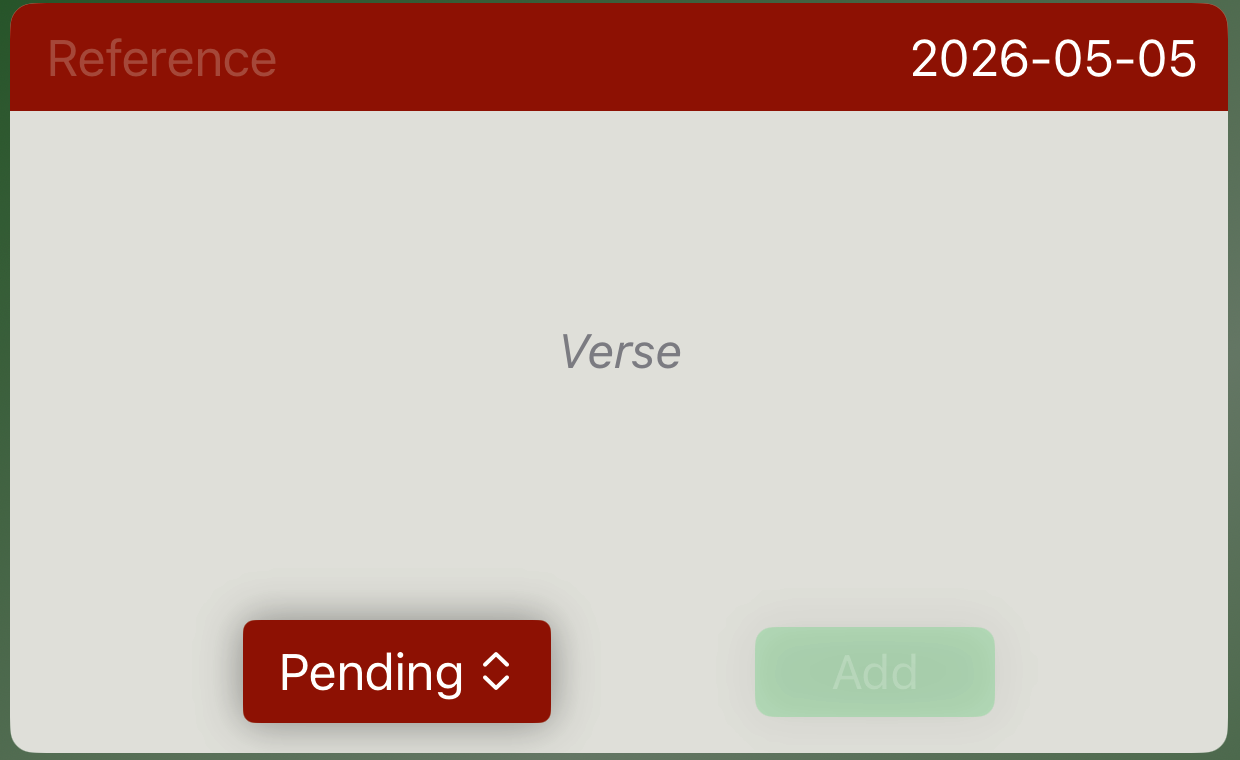
If at any time you would like to add a new favorite verse to the deck, go to the Add screen:
Click on the Reference field at the top of the card and type the reference text. Then click on the Verse field and type the verse text. After that you can optionally change the review period which starts of as Pending. Whenever a Daily card is promoted and a Pending card is selected and turned into a Daily card. You can immediately move your new card to any of the review periods according to your familiarity with it. Finish the process by clicking the Add button where the screen will be automatically reset so you can add additional cards.
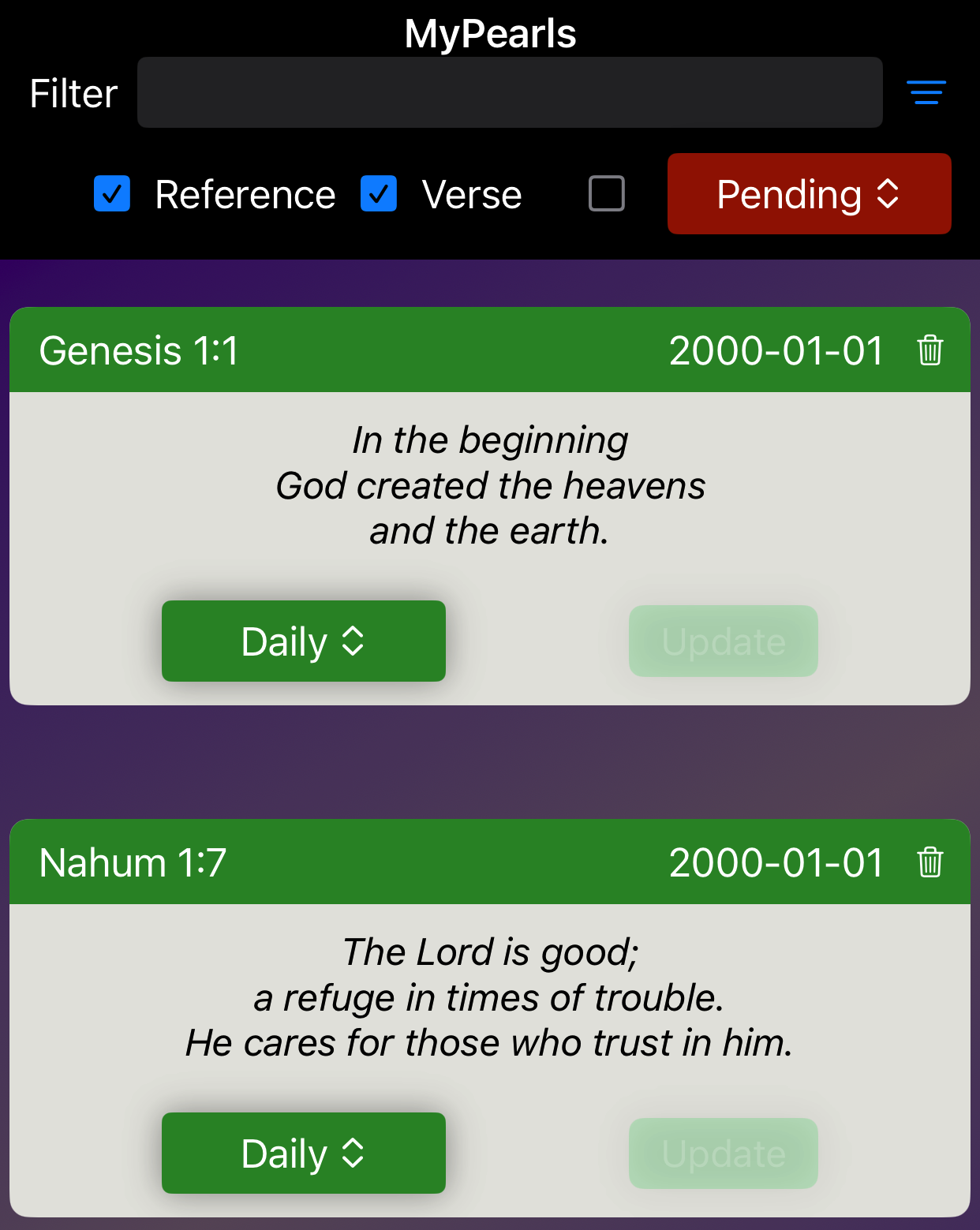
If at anytime you want to make corrections to a card, including just deleting it, you can go to the Edit screen:
The Edit screen has a Filter at the top to help find cards. You can also swipe upwards or downwards to locate a card. Each card can be modified or deleted. To delete a card click on the trash icon. To change the reference text just click on it and update the text. Similarly, click on the verse text to update it. You can also change a card’s review period by clicking on the review drop down. When you finish making any changes just click on the Update button.
Filtering: To reduce the number of cards shown on the Edit screen you use the Filter box. Only cards containing text found in the filter box will be shown. The Reference and Verse check box determine where to look on the card for the filter text. You can also filter by the clicking on the Review check box. Then only cards that match the selected Review period will be shown.
Exclusion: The Review period for a card can be set to the special type called Excluded. Excluded cards will never appear on the Home screen. They allow you to keep existing cards around without deleting them. You can start reviewing those cards at a later date just by changing their Review period.
The advanced features of the app can be seen on the Settings screen:
Screenshots